WHY GMAIL CHROME CONNECT

Why Business need Gmail Chrome Connect

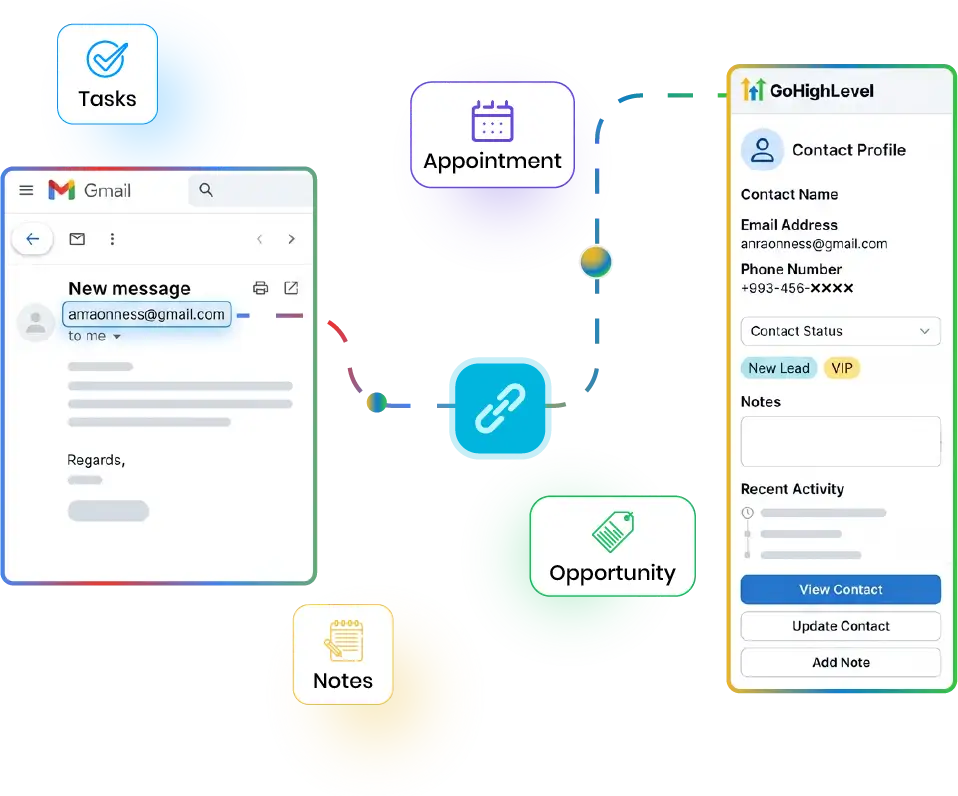
Stop Switching Between Your Inbox and CRM Email is where many customer conversations begin. But when a salesperson needs to check a CRM record, update a contact, create a task, add a note, or schedule an appointment, they often have to leave the inbox, open GoHighLevel, search for the contact, and then return to the email.That small interruption repeated throughout the day can make everyday follow-up feel unnecessarily complicated.


Too Much Tab Switching

Open email → switch to GoHighLevel → search contact → update record → return to email.

CRM Information Is One Tab Away

The information your team needs is already in GoHighLevel, but accessing it while reading an email can interrupt the workflow.

Manual Contact Searching

Searching for contacts by name can become difficult when multiple contacts have similar names.

Group Emails Create Confusion

When several people appear in an email thread, selecting the correct CRM contact matters.

Different Email Platforms

Some teams use Gmail while others use Outlook on the web. A separate workflow for each platform creates unnecessary complexity.

Without Gmail GHL Chrome Connec
Open Email
Switch to GoHighLevel
Search Contact
Open Record
Update Contact
Return to Email
With Gmail GHL Chrome Connect
Open Email
Click G
Find Contact
Take Action
Our Approach

A Simpler Way to Connect Email Conversations to Clear AI

The extension is designed around one simple idea. When you are working on an email, the relevant CRM contact should be easy to access.


01

Open Your Email

Open a message in Gmail or Outlook on the web.

02

Click the G Button

Click the blue G button available on the open-message toolbar.

03

Read Email Details

The extension reads the relevant name and email information from the conversation.

04

Match the Contact

The email address is used to look up the contact in GoHighLevel.

05

Select the Person When Needed

If an email contains multiple recipients, choose the person you want to look up.

06

Open the GHL Contact

If the contact exists, the matching GoHighLevel contact record opens in the side panel.

07

Create the Contact if Needed

If no matching contact is found, the extension can provide an option to create the contact in GoHighLevel.

08

Take Action

Edit contacts, add notes or tasks, manage opportunities, schedule appointments, and take contact actions.

Gmail GHL Chrome Connect Features
AI Services & Features

Gmail GHL Chrome Connect Features

Use modern feature cards with product UI screenshots.

Gmail + Outlook Web Support

Use one Chrome extension to connect with both Gmail and Outlook on the web.

One-Click G Button

When you open a supported email conversation, simply click the blue G button to access the CRM workflow.

Email-Based Contact Lookup

The extension uses the email address from the conversation to find the corresponding GoHighLevel contact. This helps avoid relying solely on names when identifying a CRM record.

Smart Recipient Selection

Use profile information and scoring signals to help sales teams identify contacts that may deserve additional attention.

Open Existing GoHighLevel Contact

If a matching contact exists, open the existing GoHighLevel contact directly from the Chrome side panel.

Create a New Contact

If the email address does not match an existing contact, provide an option to create a new GoHighLevel contact.

Edit Contact Fields

Update available contact information directly from the side panel.

Add Notes

Add CRM notes while reading the email conversation. This means your team can capture important context without leaving the inbox.

Create Tasks

Create follow-up tasks while the email conversation is fresh.

Manage Opportunities

Access available opportunity-related actions from the contact workflow. This helps sales teams connect email conversations with their CRM pipeline.

Manage Appointments

Create or manage supported appointment actions without repeatedly switching to GoHighLevel.

Do Not Disturb Controls

Access Do Not Disturb settings covering available communication channels: All Channels, Call, Email, SMS, WhatsApp, Google My Business, Facebook.

Location User Login

Team members can sign in using their GoHighLevel location user credentials/workflow. This allows users to work using their own CRM access rather than sharing one login.

Login & Logout From Side Panel

Users can sign in and log out directly from the Chrome side panel.

Persistent Session

The session remains active until the user logs out, reducing the need to repeatedly authenticate during normal use.

Everything You Need, Right Beside Your Email

GHLSide Panel

Contact

John Smith
john@company.com

Highlighted Capabilities

  • Contact John Smith (john@company.com)
  • CRM Actions Edit Contact, Add Note, Create Task
  • Sales Opportunity, Appointment
  • Communication Do Not Disturb

Stay in Your Inbox

Work from Gmail or Outlook on the web instead of switching tabs for every CRM action.

Reduce Tab Switching

Access the relevant GoHighLevel contact from the Chrome side panel while reading the email.

Use Existing CRM Record

The extension looks up the GoHighLevel contact by email rather than creating a separate contact database inside your inbox.

Faster Follow-Up

Add a note, create a task, work with an opportunity, or handle an appointment while the conversation is still open.

Fewer Wrong Contacts

On group conversations, users can choose the person they want before performing the contact lookup.

Support Gmail & Outlook Web

Teams using different web email platforms can work with the same Chrome extension experience.

Own Team Member Access

Staff can sign in using their own users rather than requiring everyone to have GoHighLevel Marketplace access in Chrome.

Keep CRM Info Connected

Your team can reference the GoHighLevel contact while continuing the conversation in the inbox.

Improve Sales Productivity

Reduce small workflow interruptions so representatives can spend more time communicating with customers and prospects.

Simple, Familiar Workflow

No complicated CRM interface inside your email. Open → Click G → Find Contact → Take Action.

Wgy useGmail GHL Chrome Connect
Key Benefits

Why Sales Teams Love Gmail GHL Chrome Connect

Enterprise Tech

Technology Behind Gmail GHL Chrome Connect


Google Chrome

Google Chrome

Chrome Extensions

Chrome Extensions

Chrome Side Panel APIs

Chrome Side Panel APIs

Gmail Web

Gmail Web

Outlook on the Web

Outlook on the Web

GoHighLevel

GoHighLevel

GoHighLevel APIs

GoHighLevel APIs

Contact APIs

Contact APIs

Opportunity APIs

Opportunity APIs

Appointment APIs

Appointment APIs

User / Location APIs

User / Location APIs

Supported CRM actions

Supported CRM actions

REST APIs

REST APIs

OAuth / Secure Authentication

OAuth / Secure Authentication

API Authentication

API Authentication

JSON

JSON

Webhooks where applicable

Webhooks where applicable

JavaScript

JavaScript

TypeScript

TypeScript

HTML5 logo

HTML5

CSS logo

CSS

Chrome Extension APIs

Chrome Extension APIs

Node.js

Node.js

Python

Python

REST API

REST API

Secure API services

Secure API services

Secure API Authentication

Secure authentication

Session management

Session management

Access Control

Access control

Encrypted communication

Encrypted communication

Token protection

Token protection

Secure API Transmission

Secure API requests

HOW IT WORKS

How Gmail GHL Chrome Connect Works

10 straightforward steps to connect email conversations with your GoHighLevel CRM.


01

Install the Chrome Extension

Install Gmail GHL Chrome Connect in your Chrome browser.

02

Sign In

Sign in using the supported GoHighLevel location user workflow.

03

Open Gmail or Outlook Web

Continue using your normal email workflow.

04

Open a Conversation

Open the email you want to work with.

05

Click the Blue G

Click the G button on the email toolbar.

06

Select a Recipient

For one-to-one emails, contacts are identified automatically; for multiple recipients, select a contact.

07

Find the GoHighLevel Contact

The extension searches for the contact using the email address.

08

Open or Create Contact

Open the contact if found; otherwise, create a new one.

09

Take CRM Actions

Manage contacts, notes, tasks, opportunities, appointments, communication settings, and Do Not Disturb.

10

Continue Your Conversation

Close the panel or leave it open and continue working in your inbox.

Who Can Use Gmail GHL Chrome Connect
INDUSTRY USE CASES

Who Can Use Gmail GHL Chrome Connect?

The product is especially useful for teams where email is a major part of the sales, customer-service, or account-management workflow.

Marketing Agencies

Manage prospect and client contacts while communicating through Gmail or Outlook web.

Sales Teams

Quickly access CRM contact records while communicating with prospects.

Real Estate

Access buyer, seller, investor, and partner contact information while handling email conversations.

SaaS Companies

Help sales and customer-success teams connect email conversations with CRM records.

B2B Businesses

Give sales representatives a faster way to reference customer and prospect records while emailing.

Recruiting & Staffing

Recruiters can manage candidate or client contact information alongside their email workflow.

Consulting Firms

Connect business conversations with CRM records without repeatedly switching applications.

Insurance & Financial Services

Sales teams can access relevant CRM contact information while working through email.

BPO & Customer Support Teams

Agents and sales teams can reference CRM information while handling customer communication.

Professional Services

Law firms, accounting firms, consultants, and service businesses can connect everyday email activity with their CRM workflow.

Built Around the Way Your Team Already Works


Designed for GoHighLevel

The extension is built around GoHighLevel CRM workflows instead of trying to replace your CRM.

Email-First Workflow

Your team can continue using the email platform they already know.

Gmail + Outlook Web

One Chrome extension supports teams working across Gmail and Outlook on the web.

Email-Based Matching

Contacts are looked up using email, providing a straightforward matching method.

Simple User Experience

The workflow is intentionally simple: Open email → Click G → Find contact → Take action.

Existing CRM Record

The goal is to work with the GoHighLevel contact already stored in your CRM rather than creating an unrelated copy in the inbox.

Team-Friendly Access

Team members can use their own supported location-user access.

Sales Productivity Focus

The extension is designed around everyday actions that sales and customer-facing teams perform repeatedly.

Practical CRM Integration

Contact management, notes, tasks, opportunities, appointments, and supported communication controls are available from one side panel.

Built for Real Workflows

The product is designed around a common business problem: people live in email, while customer information lives in the CRM.

FAQ

Frequently Asked Questions

Get clear, comprehensive answers about how Gmail GHL Chrome Connect connects Gmail and Outlook on the web with GoHighLevel to streamline your customer interactions.

Learn how instant contact lookups, real-time field editing, note taking, and task creation help your team work seamlessly from your email inbox without switching tabs.

Have More Questions?

Can't find the answers you're looking for? Reach out to our specialist support team anytime.

Contact Support →

Gmail GHL Chrome Connect is a Chrome side-panel extension that connects Gmail and Outlook on the web with GoHighLevel, allowing users to access and work with matching GoHighLevel contacts while reading email.

Yes. It is designed to work with Gmail on the web through a Chrome extension.

Yes, it supports Outlook on the web.

No. The extension is designed for Outlook on the web, not the desktop Outlook application.

The contact lookup is performed using the email address from the email conversation.

When multiple recipients are detected, the user can select the person they want to look up before searching GoHighLevel.

Yes, when an appropriate matching contact cannot be found, the available workflow can allow you to create a new contact.

Yes, supported standard and custom contact fields can be edited from the side panel.

Yes. You can add supported GoHighLevel contact notes while working from the email.

Yes. Supported users can create CRM tasks from the side panel.

India logo

Variance InfoTech Pvt Ltd. 608/609, 6th floor - Abhishree Adroit, Vastrapur, Ahmedabad, 380015, India Phone : +91-7016851729 Email : info@appshor.com

USA USA Flag

Variance InfoTech LLC 30 N Gould St. Sheridan, WY 82801 USA